Set up a custom domain
A custom domain lets your short links use your own name, such as go.yourbrand.com/spring, instead of the shared short domain. Custom domains are on the Pro plan and above: Pro allows 2 per workspace, Team 10 and Business any number.
The workspace owner or an Admin can set one up on the Custom domains page in the app:
- Enter the domain and add it. Use a subdomain such as
go.yourbrand.com. Root domains likeyourbrand.comaren't supported for now, because they can't take a CNAME record. - At your DNS provider, add the TXT record shown on the page. It proves you own the domain. Its name starts with
_urlicer.and its value is a token generated for your domain. One TXT record at_urlicer.yourbrand.comalso covers any other subdomains ofyourbrand.comyou add later. - Add the CNAME record shown on the page. It points the domain at Urlicer so the links reach us.
- Click Verify. DNS changes can take a few minutes to spread, so try again shortly if it doesn't pass the first time.
Once the domain is verified, the HTTPS certificate is issued automatically. The page shows TLS pending until it's ready, which usually takes a few seconds.
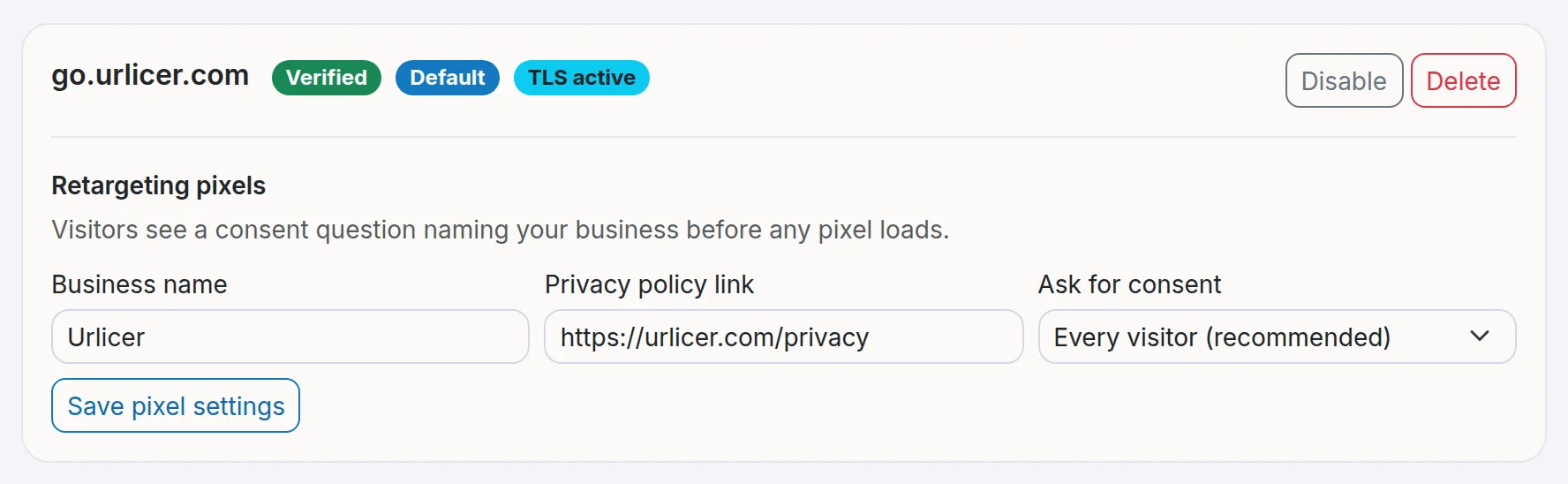
When you create a link you can choose which domain it uses. The first domain you add becomes the workspace's default, and you can make another one the default with Set default. You can also disable or delete a domain on the same page.
Links already on the shared domain can move to your domain with Change short domain on the links page. Their old addresses stop working, so read change the domain of many links first.
Want a hand?
If you would rather not do the DNS part alone, choose Book free setup help on the Custom domains page. It opens a support ticket in the Domain setup category, and we set the domain up with you: choosing the name, adding the two records, and checking the certificate. It is free while we are small. We can advise on buying a domain, but we never buy one for you and never ask for your registrar login.
See plans and limits for the domain limits and roles and permissions for who can manage domains.
Still need a hand?
Contact support