Create your first short link
A short link opens a long URL, called its destination, and records each click in your analytics. You make one by pasting the destination; Urlicer gives it a short code, and you copy the link, or grab its QR code, and share it.
From any page: New link
Every page of the app has a New link button at the top right (a + on a phone). Paste the destination and press Create link or Enter. The new link appears straight away with buttons to copy it, show its QR code, edit it or open its analytics. Where the browser allows it, the link is already on your clipboard.
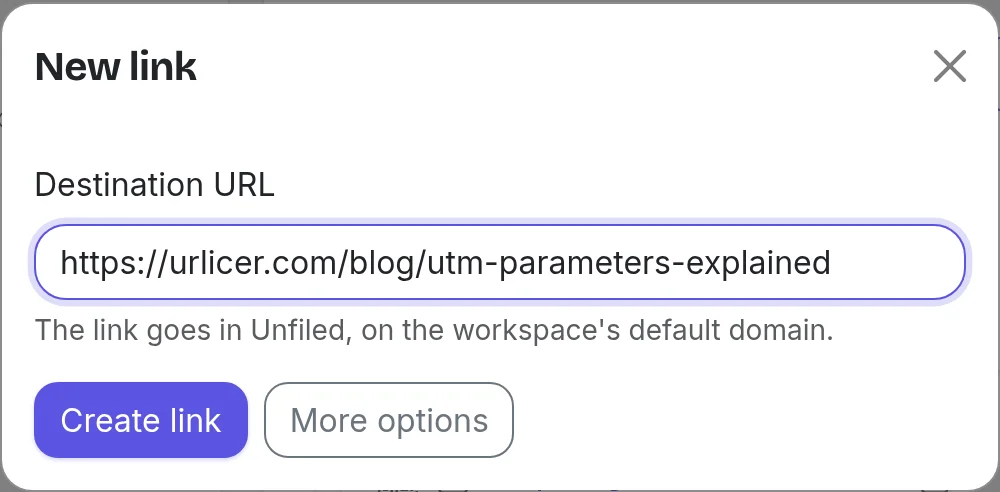
Two shortcuts open the same box:
- Press C on any page of the app.
- Paste a URL anywhere on the page, outside a text field. The box opens with the URL filled in, and nothing is created until you press Enter.
Outside a workspace, for example on your account or billing page, the box first asks which workspace the link is for, set to the one you used last.
Links made this way go in Unfiled on the workspace's default domain. The button is not shown to Viewers, who can't create links (see roles and permissions).
On the links page
The box above your links list works the same way, and files the new link into the folder you have open, on that folder's default domain.
With every option: the full form
More options, in either box, opens the full form with your URL already filled in. So does Add Short URL on the links page. Use it for a custom alias, an expiry date, a password, a folder or targeting. An alias can only be chosen when the link is created, so pick it here if you want one.
You can also shorten a link on the homepage without an account. Those links expire after 30 days and have no dashboard, and they can't have a custom alias, a custom domain or a password. To keep one, use the Keep this link option shown after you create it (see keep a link you made without an account).
Still need a hand?
Contact support